

Before Building on Corti
Before writing a single line of code, align on the fundamentals:Define Your Dictation Use Case
Define Your Dictation Use Case
Be explicit about who this dictation experience is for and what problem it solves.
Is it for:
Primary care note creation?
Specialist assessment dictation?
Referral letters and follow-up summaries?
Procedure notes or discharge documentation?
The shape of your clinical output (structure, editing needs, and final destination) will vary significantly depending on the workflow. A narrowly defined initial use case leads to faster iteration and stronger provider trust.
Determine When Dictation Should Be Used Instead of Ambient
Determine When Dictation Should Be Used Instead of Ambient
Ambient and dictation solve different problems.
Ambient is ideal when you want the system to listen to a clinical conversation and assist in generating documentation from the encounter. Dictation is ideal when the provider wants to directly control the exact content, wording, structure, and pace of documentation.
Most organizations will want both. Design the UX intentionally so providers understand:
when to start an ambient workflow
when to switch into dictation
when to use dictation to supplement or correct ambient-generated content
Clear boundaries between these modes reduce confusion and drive better adoption.
Identify Integration Surface Area (EHR, Editor, Mobile App, etc.)
Identify Integration Surface Area (EHR, Editor, Mobile App, etc.)
Dictation is most powerful when it sits directly inside existing documentation workflows.
Determine where providers will dictate, where text should appear, and where the final text should be written back.
For some products, this means deep embedding inside an EHR note editor. For others, it may mean a mobile workflow, a browser-based dictation window, or a lightweight copy/paste experience. Integration scope will heavily influence build complexity and timeline.
Plan for Human Review & Edit Controls
Plan for Human Review & Edit Controls
Clinicians should always remain the final authority on documentation.
Define how users will review dictated text, correct transcription errors, and ultimately approve final documentation
Think carefully about edit controls, cursor placement, undo patterns, and how providers recover from mistakes. A strong dictation experience is not only about recognition quality. It is also about making correction feel fast and low-friction.
Establish your Success Metrics
Identifying the best way to measure success for your dictation workflow can be difficult. The true measure of success is not just transcript quality, it is whether providers document faster, with less friction, and with more confidence. Before launch, define how you will quantify impact operationally, experientially, and behaviorally.Provider Satisfaction
Provider Satisfaction
Provider trust and comfort are the leading indicators of long-term adoption.
Measure:
Overall satisfaction score (CSAT or NPS-style survey)
Adoption Rates
Dictation tools fail when they feel unpredictable, overly rigid, or too expensive to correct. Regular pulse surveys can help detect friction early.
Measure:
Overall satisfaction score (CSAT or NPS-style survey)
Adoption Rates
Dictation tools fail when they feel unpredictable, overly rigid, or too expensive to correct. Regular pulse surveys can help detect friction early.
Time Saved on Documentation
Time Saved on Documentation
If charting time is currently tracked, this becomes one of the clearest ROI metrics.
Measure:
Average documentation time per note
After-hours charting (“pajama time”)
Time spent typing vs speaking
A reduction in manual documentation time can materially improve provider experience and throughput.
Measure:
Average documentation time per note
After-hours charting (“pajama time”)
Time spent typing vs speaking
A reduction in manual documentation time can materially improve provider experience and throughput.
Patient Satisfaction
Patient Satisfaction
Ambient tools often shift clinician attention back to the patient.
Measure:
Patient-reported perception of provider attentiveness
Visit quality ratings
Improved patient satisfaction can be a secondary but meaningful outcome of successful ambient implementation.
Measure:
Patient-reported perception of provider attentiveness
Visit quality ratings
Improved patient satisfaction can be a secondary but meaningful outcome of successful ambient implementation.
Edit Rate & Modification Patterns
Edit Rate & Modification Patterns
Track how frequently providers modify dictated text and where those edits occur.
Measure:
Word Error Rate (WER)
Percentage of dictated text accepted with minimal changes
Edits are a normal part of adoption. What matters is identifying the trends, the repeated friction points, and the outliers.
Measure:
Word Error Rate (WER)
Percentage of dictated text accepted with minimal changes
Edits are a normal part of adoption. What matters is identifying the trends, the repeated friction points, and the outliers.
Specialty Vocabulary Performance
Specialty Vocabulary Performance
Providers notice immediately when the system struggles with medications, diagnoses, anatomy, and specialty phrasing.
Measure:
Medical Term Recall (WER)
Custom vocabulary success in target specialties
For clinical dictation, terminology performance is not a “nice to have.” It is central to trust.
Measure:
Medical Term Recall (WER)
Custom vocabulary success in target specialties
For clinical dictation, terminology performance is not a “nice to have.” It is central to trust.
The Corti API Basics
Interactions
The interaction is the central hub for managing conversational sessions, letting you create and update interactions that drive clinical AI workflows.
Speech to Text Endpoints
Text Generation Endpoints
Agentic Endpoints
Transcribe
Real-time, stateless speech-to-text over WebSocket designed to power fluid dictation experiences with reliable medical language recognition.
Facts
Extract and retrieve clinically relevant facts from interactions to enhance insight and decision support.
Agents
Create and manage AI-driven agents that automate contextual messaging and task workflows with experts registry support.
Streams
Live WebSocket interaction streaming that concurrently produces transcripts and clinical facts to support ambient documentation workflows.
Templates
Define reusable document structures that ensure clarity and consistency in generated outputs.
Recordings
Upload and organize audio recordings tied to interactions to fuel downstream transcription and document generation.
Documents
Generate polished clinical documents from transcripts and templates for notes, summaries, or referrals.
Transcripts
Convert uploaded recordings into structured, usable text to support review and documentation.
How to Implement Your Dictation Tool
1. Map Your Dictation Workflows
Dictation is not just ASR in a microphone. It is part of your clinical workflow system. Before building, map the end-to-end experience:Questions to Align On
- Is this for desktop, mobile, or both?
- Is the provider dictating into a free-text editor, a sectioned note, or a template-based form?
- How should providers navigate through the chart when dictating?
- How should providers:
-
- start and stop dictation?
-
- review dictated text?
-
- correct errors quickly?
-
- approve final documentation?
Sense Check Your Core Workflows with a Diagram
To illustrate the concept with a hypothetical EHR, they may have made the following decisions for their design: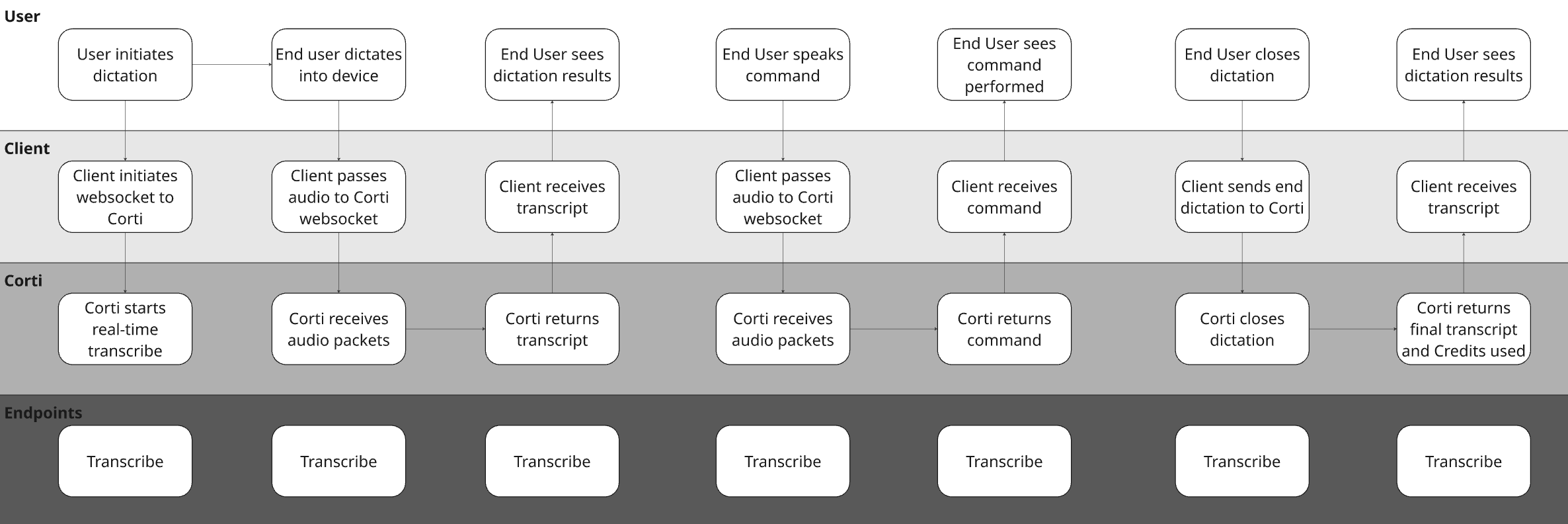
2. Perfect Your Audio Stream
As with any speech tool, good audio is paramount to its success. The first thing to focus on is a straightforward workflow that gets crisp, clean audio straight from your users to Corti for immediate transcription. For dictation workflows, real time audio capture is a must have. We find it important for a number of reasons: Builds trust - by capturing live audio, clinicians see their dictations in real time. It’s key to efficiency and trust. Intercepts issues - with live audio capture, you can use Corti’s Audio Health events to intercept areas where the audio being received isn’t clear. It’s easier to tell a user the audio isn’t clear in the session rather than after so they can correct it sooner.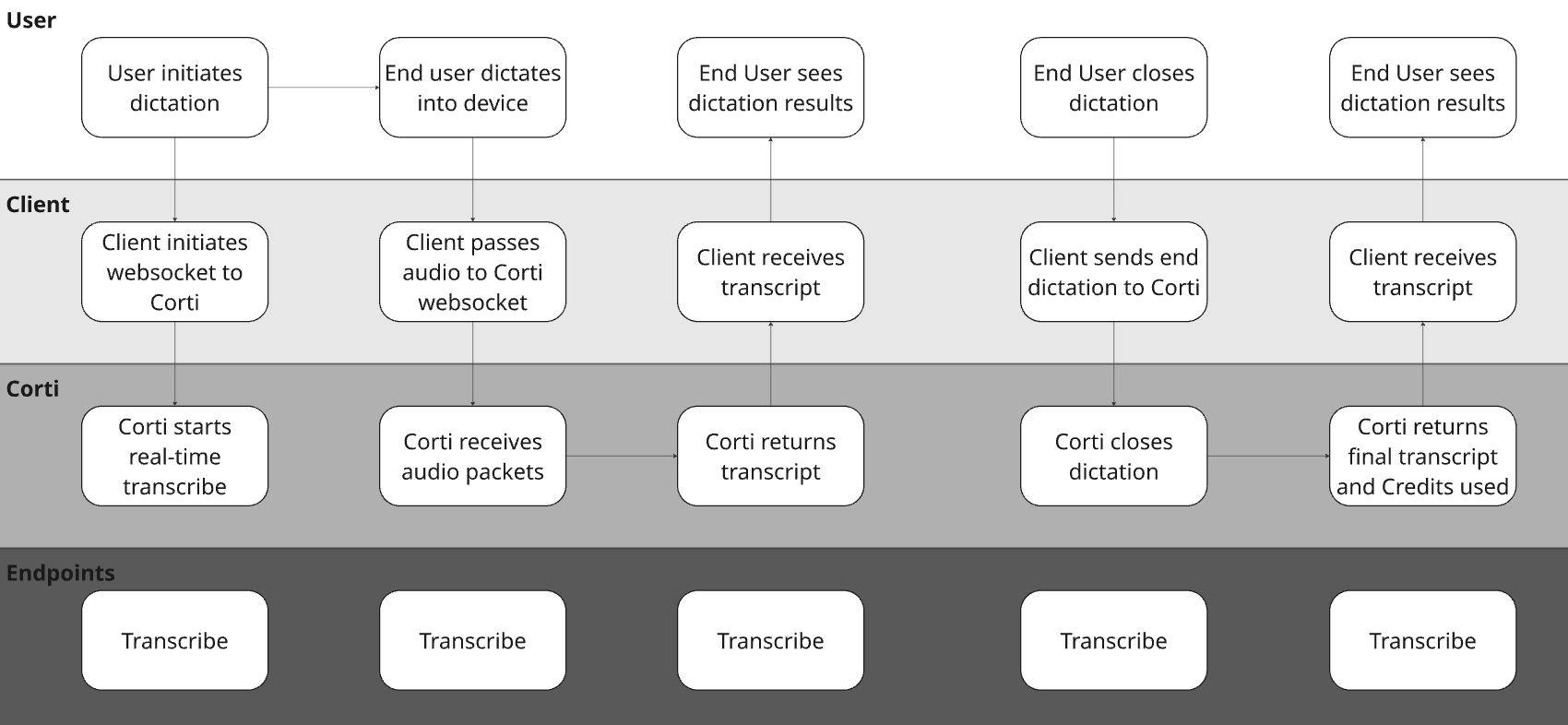
3. Define your Dictation Commands
Dictation is so much more than just simple speech to text. When implemented well, dictation allows for providers to execute fully hands free workflows. They can jump sections in the system they are working with, select specific text, delete text, etc.Define Supported Dictation Commands
Tying this back to the questions to consider, It’s important to understand what system(s) you are building into and what/how they support:- First identify which systems you’re integrating into - Is it a desktop application? A mobile app? Both?
- Next, map out the commands you will be supporting - Read more tips/best practices here
- If building into multiple platforms, identify how commands may need to vary based on system the provider is working from.
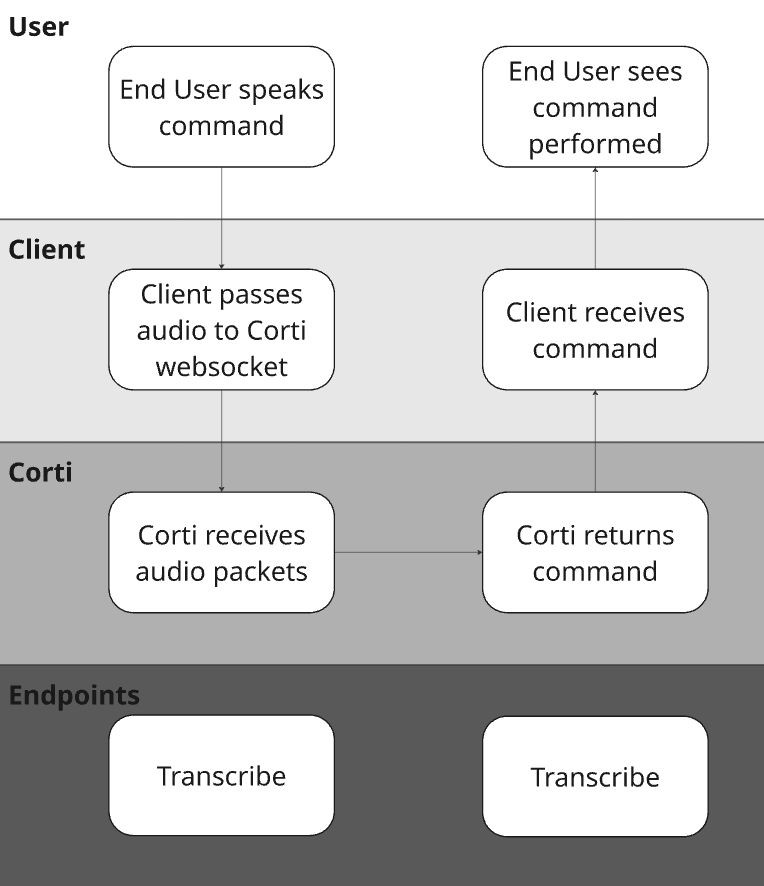
delete_range variable. Your application can define different delete actions for each of the options!
4. Determine Your Punctuation Strategy
Most dictation tools on the market today have punctuation support baked into their solution. To make sure that we keep feature parity with legacy approaches to dictation, we offer a vast number of punctuation commands for providers to use (We also can use our models to formate/punctuate dictations instead!). We recommend consistency in your approach here. There are few things more frustrating than trying to dictate commands into a field that doesn’t support it!
If supporting spoken punctuation, make sure you know what we support out of the box below:
- English
- Danish
- Dutch
- French
- German
- Hungarian
- Norwegian
- Swedish
Tying It All Together
Between medical grade speech to text, the configurable spoken command support, and punctuation capabilities, there’s a lot to piece together. But using the above steps and considerations, you should have a good idea of how to piece the puzzle together in the best way for your organization and your platform(s). As a refresher, in the above we discussed:- Start with great audio - This means optimizing the stream as well as microphones.
- Design Time Saving Commands - Workflows like navigation and editing can save providers time (and clicks) if you design dictation to help.
- Add Punctuation Support - This helps your data to look clean and make it more easily actionable by other users.